 Schema Software
Access Governance for Jira
Access Governance for Jira shows you who can do what across your Jira site, lets you preview what breaks before you change a group, helps you reclaim unused licenses, and runs attested access reviews — all from one admin screen, without your data ever leaving Atlassian.
Where to find it
The app lives in Jira's admin area. Go to Settings (the gear icon) → Apps → Access Governance. It opens as a full-page admin screen with a row of tabs across the top. Only Jira administrators can open it.
Your data never leaves Atlassian
The app is built on Atlassian Forge and is read-only by default. It reads your Jira permission configuration to build a picture of who has access, and stores that picture only in Atlassian-hosted Forge storage — in your own site's data-residency region. It declares no external network access, so nothing is ever sent to us or any third party. When you uninstall, the stored data is deleted.
The app makes changes only when you explicitly preview, confirm, and apply them (see Groups and Access reviews). Every change is recorded and can be undone.
How it works: the scan
Everything you see in the app comes from a scan — a snapshot of your site's access configuration. The app reads the last completed snapshot, so it's fast and never slows Jira down. The snapshot refreshes automatically once a day, and you can refresh it any time.
- Open the app. The status bar at the top shows whether a scan has run (Ready, Scanning, or No scan yet).
- If it's your first time, select Run scan (top right). The first scan takes a few minutes depending on site size; you can keep using Jira while it runs.
- When it finishes, the status bar reads “Last scanned …” and every tab is populated. After you apply a change, run a scan again so the rest of the app reflects it.
Reading the Overview
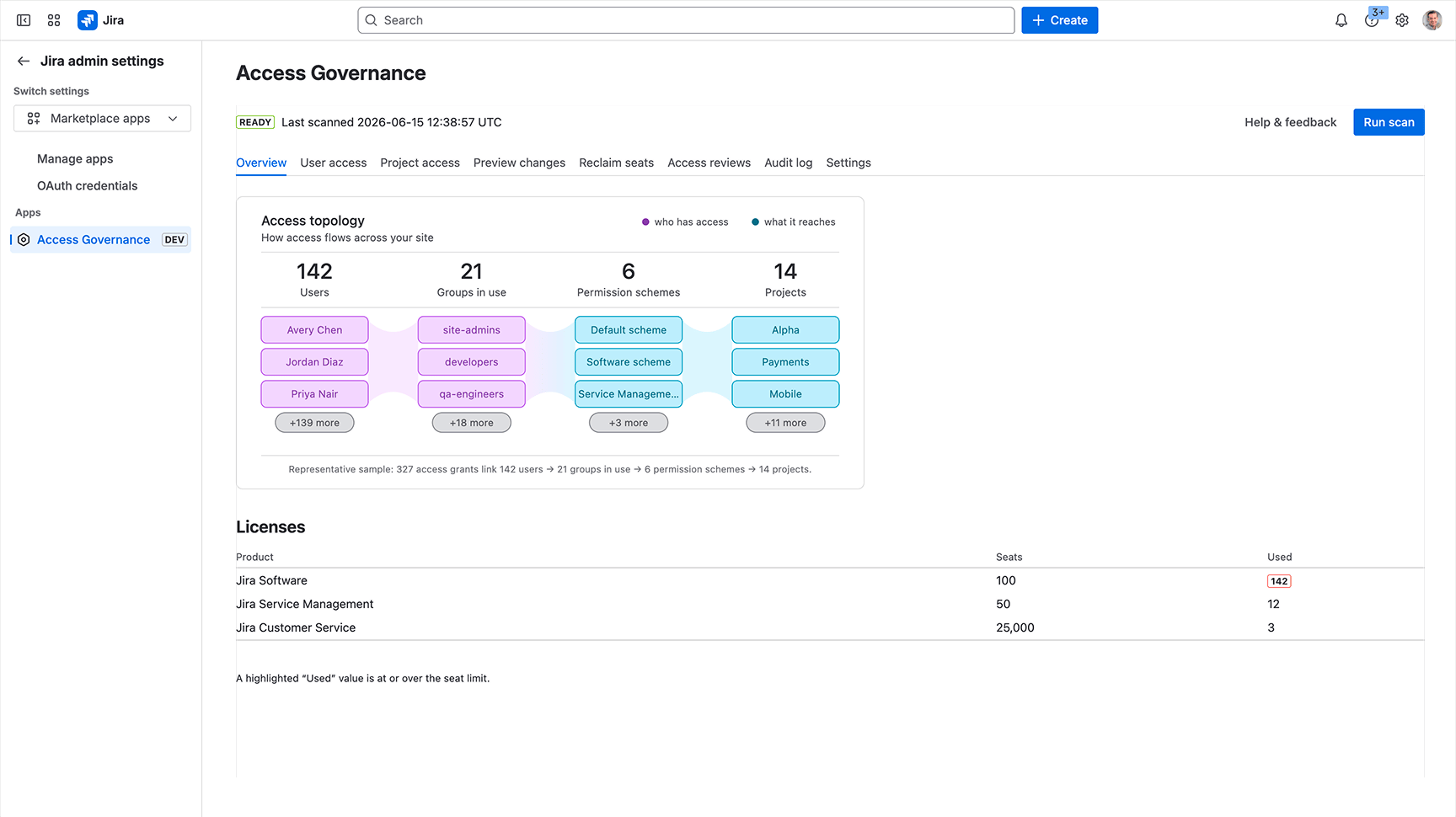
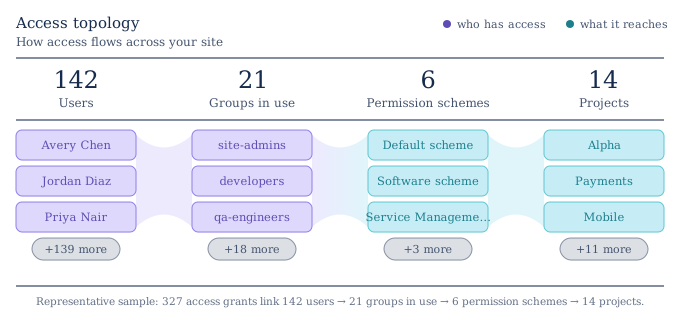
The Overview tab opens first. At the top is the Access topology — a single picture of how access flows across your site, left to right: users → groups → permission schemes → projects. Purple is who has access; teal is what it reaches. Each column shows a representative sample with a “+N more” pill, and the headline number above each column is the true total. Below it, Granted to everyone lists every permission-scheme grant made to Anyone (public, no login) or to Any logged-in user, ranked loudest first and joined to the projects that use each scheme. Schemes not used in any project are listed last. This is the first thing an auditor asks, answered without opening a single project. Each finding links to the scheme in Jira, and the list exports to CSV/JSON. Then the Licenses table shows seats used vs. owned per product, highlighting anything at or over its limit. If your site has team-managed projects, a line under the topology says how many are not included; hover its info icon for why (see the limits below).
The tabs at a glance
| Tab | What it answers |
|---|---|
| Overview | How much access exists across the site, and how seats are used. |
| Users | “What can this person reach, and how?” |
| Projects | “Who can access this project, and via which group or role?” |
| Groups | “If I remove this group, what breaks — and then remove it safely.” |
| Reclaim seats | “Which inactive users are costing me licenses, and how do I free them?” |
| Access reviews | Recertify access on a cadence — keep/revoke, sign off, apply, export evidence. |
| Audit log | The evidence trail of every scan, check, and applied change — with one-click undo. |
| Settings | Your per-seat cost and the inactivity threshold used elsewhere in the app. |
Three honest limits worth knowing up front
- Inactivity is an activity signal, not a login time. “Last issue activity” is the most recent time someone acted on an issue. It's a strong indicator of who's active, but a privacy-safe app can't see exact last-login times — so confirm before removing anyone.
- Two kinds of access can't be read. Issue-security level membership and global permissions (like “Administer Jira”) aren't readable by a privacy-safe app, so they aren't shown. The app points you to the right Jira admin page to check them yourself where it matters.
- Team-managed projects are not covered by the scheme-based views. Team-managed projects do not use permission schemes. Their access is an access level (open, limited, or private) plus roles held inside each project. So they are not part of the Users tab’s permissions, the Groups tab, or the “Granted to everyone” check. The Overview says how many you have. The Projects tab still shows who holds a role in each one and links to the project's own access page.