 Schema Software
Access reviews
An access review (or “recertification”) is where a reviewer confirms each person still needs the access they have. The Access reviews tab runs these on a cadence: pick a scope, decide keep or revoke for each item, sign off as a human certification, and the app applies the revocations for you. Each review is exportable compliance evidence.
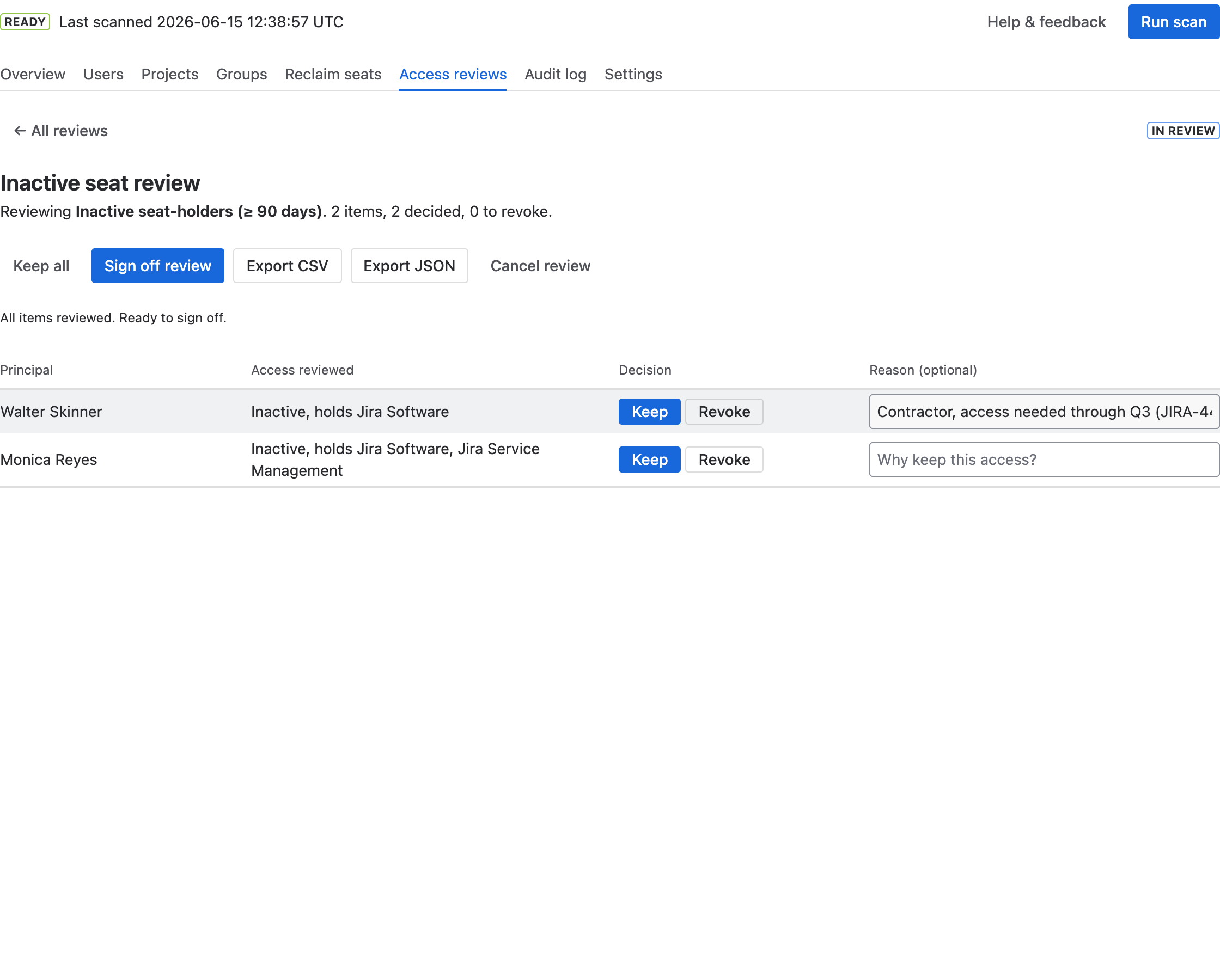
Running a review, end to end
- Select New review and choose a scope:
- Group membership — recertify who belongs to a group (revoke removes the member).
- Project access — recertify who can access a project (revoke removes them from the project's role).
- Inactive seat-holders — recertify inactive users who hold a licence (revoke reclaims the seat).
- For a group or project scope, pick the specific group/project. Optionally name the review and set a cadence (one-off, monthly, or quarterly — a repeating review reopens itself when due). Select Create review.
- For each item, choose Keep or Revoke (selecting again clears the decision). Keep all decides the rest in one click.
- Optionally add a Reason for each decision — a short note saying why. It becomes available once you've chosen Keep or Revoke, and saves when you click away.
- When every item is decided, select Sign off review — this records who certified it, by name.
- Select Apply N revocation(s). A dialog restates what will change; confirm, and the app revokes the access. Then Export CSV/JSON for evidence and Close the review.
Why the “Reason” column is worth filling in
It's optional, and the review works without it. But it's usually the first thing an auditor reads, because the question they're asking isn't whether access was reviewed — it's why access was kept. A review where every row says Keep and none says why demonstrates that someone clicked through it, not that anyone judged it.
A useful reason is short and points at something outside the app: the business need, the role that requires it, an end date, or a ticket. “Contractor, needed through Q3 (JIRA-4412)” answers the question. “Approved” doesn't.
Reasons are saved with the decision, appear as a Justification column in the CSV/JSON evidence export, and are recorded in the Audit log like any other decision. Clearing a decision clears its reason too.
Reading a review
- The reviews list shows each campaign's scope, status (In review, Signed off, Executed, Closed), how often it repeats, progress (decided / total), and how many items are marked to revoke.
- Inside a review, the items table shows each principal, the access being reviewed, its decision/outcome, and the reason recorded for it.
- A canceled review can be reopened; decisions are preserved.
When a revocation needs you to finish in Jira
Most revocations are applied automatically. But some access — a direct grant to a person, or externally-managed (SCIM) membership — can't be changed by an app. After you apply, a clear banner flags those items as “Revoke in Jira” with step-by-step instructions and a direct link, so nothing is silently left undone.