 Schema Software
Projects
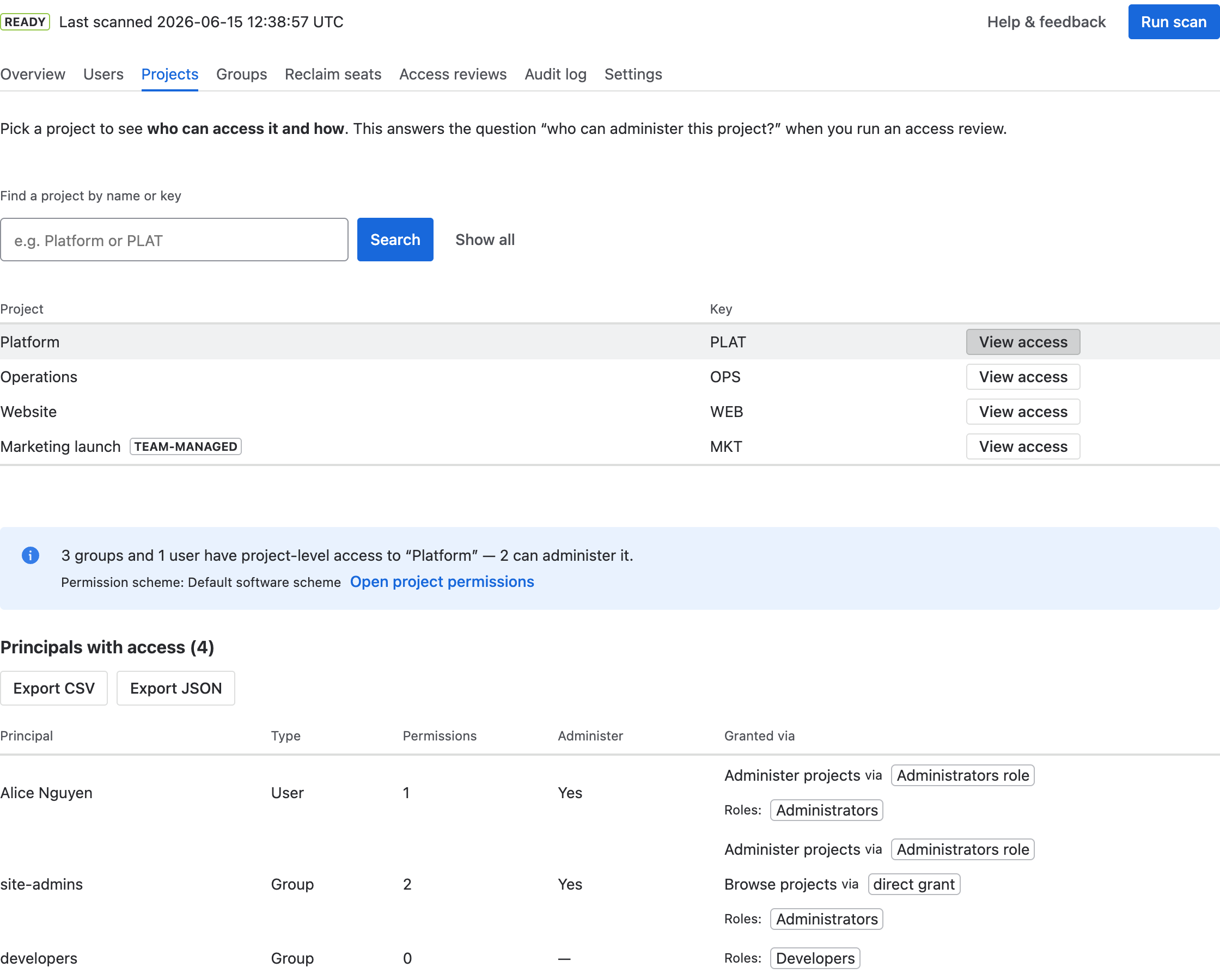
The Projects tab is the mirror image of Users: pick a project to see who can access it, and how — every group and user with access, the permissions and roles they hold, and which of them can administer the project. It's the fastest way to answer “who can administer project X?”
How to use it
- Type a project name or key into Find a project by name or key and select Search — or Show all to browse.
- Select View access on the project you want.
- Read the summary and the principals table (below). Select any column heading to sort. Use Show all N permissions to expand a principal's full grant list, and Export CSV/JSON to save it as review evidence.
Reading the results
- Summary — e.g. “3 groups and 1 user have project-level access to “Platform” — 2 can administer it.” It also shows the project's permission scheme and an Open project permissions link straight to that page in Jira.
- Principals with access — a sortable table:
- Principal / Type — the group, user, or app, and which it is. An App is an integration's service account (Slack, Automation for Jira, and so on), not a person. The summary counts apps separately, and the export carries an Account type column.
- Permissions — how many distinct permissions they hold.
- Administer — “Yes” if they can administer the project (the headline answer for an access review), “—” otherwise.
- Granted via — each permission with the group, role, or direct grant that confers it, plus any role memberships.
- Other grants — permissions given to special holders rather than a named group or user (the project lead, the current assignee/reporter, “any logged-in user”, or anyone). These are listed separately because they can't be resolved to a specific person.
Team-managed projects
Team-managed projects do not use permission schemes. Their access is an access level (open, limited, or private) plus roles held inside each project — Administrator, Member, Viewer — so the scheme-based reading above doesn't apply. The app marks these projects team-managed in the picker and, when you open one, shows what it can read: who holds a role in the project, with members of its Administrator role counted as administrators. The access level itself isn't readable, so the summary says so and links to the project's own access settings page in Jira, where the whole picture is. Team-managed projects are also left out of Groups and the Overview's “Granted to everyone” check, and the Overview says how many there are.
One thing this view can't see
Access via issue-security levels or global permissions isn't readable by a privacy-safe app, so it isn't reflected here. Check those in Jira if they're relevant to the project you're reviewing.