 Schema Software
Users
The Users tab answers one question: what can this person reach, and how? Look up any user to see every project, filter, and dashboard they can touch, the groups that grant it, and the product seats they consume.
How to use it
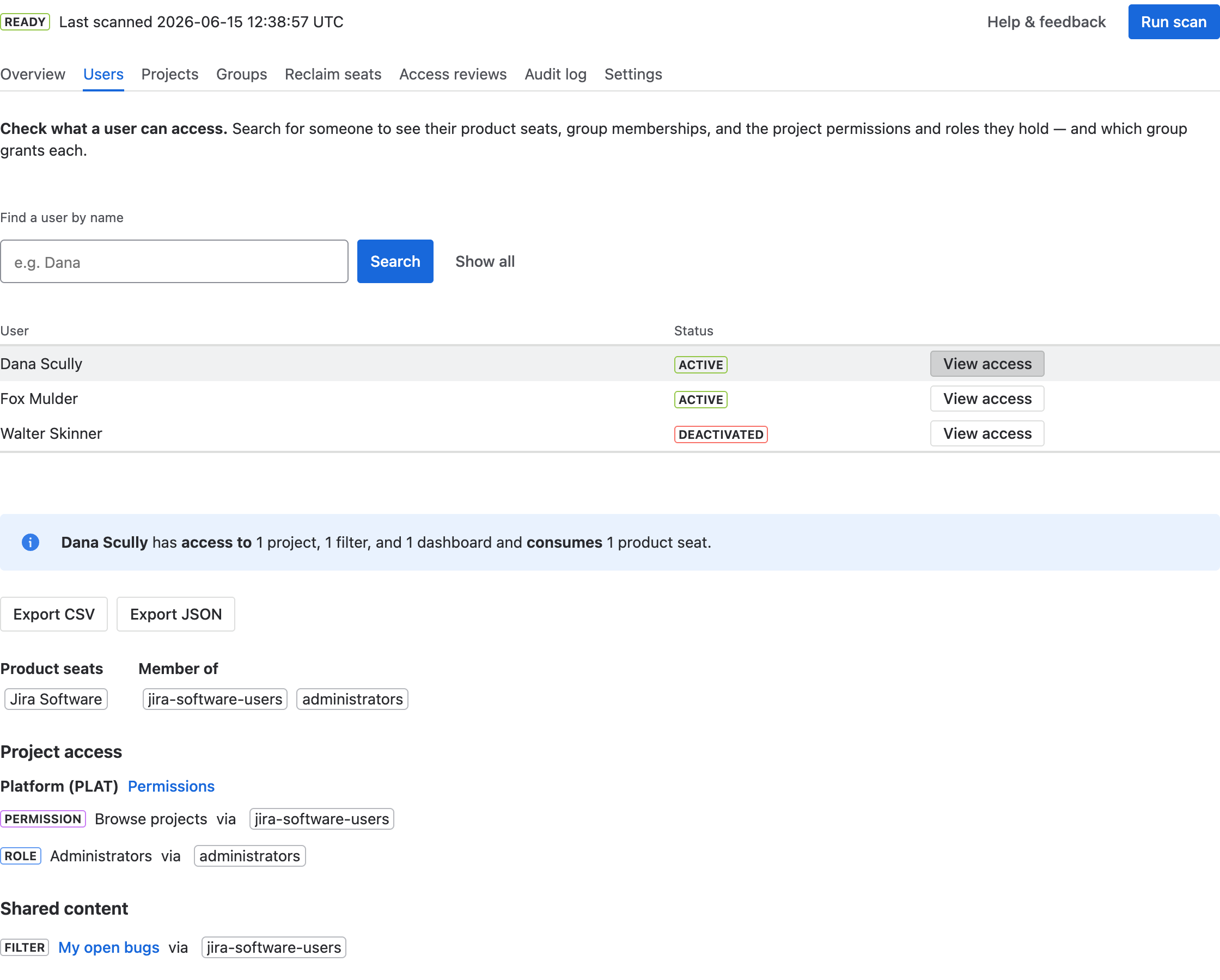
- Type a name into Find a user by name and select Search — or select Show all to browse everyone. Long lists load in pages (Load more).
- Select View access next to the person you want.
- Read the breakdown (below). To save it as evidence, use Export CSV or Export JSON — the export is recorded in the Audit log.
Reading the results
- Summary — a one-line readout, e.g. “Dana Scully has access to 1 project, 1 filter, and 1 dashboard and consumes 1 product seat.”
- Product seats — the billable products this user consumes a licence for (or “none”). This is what you'd free up by removing them (see Reclaim seats).
- Member of — the groups that grant this user access. Access in Jira almost always flows through groups, so this is usually where you'd make a change.
- Project access — per project, each permission and role the user holds, with “via” showing the exact group or role that grants it. The project name links to that project's permissions in Jira.
- Shared content — filters and dashboards shared with the user, each with the group that shares it. The filter/dashboard name opens it in Jira.
If a user has no project access or no shared content, those sections are simply omitted. Searching a name that matches nobody shows “No users match …”.
Reading the grant path
Knowing that someone has Browse on a project isn't enough to act on; you need to know why. Every permission and role in this view carries its grant path — the chips after “via” — which name the exact group, role, or direct grant that confers it. A single permission can arrive by more than one path, and then every path is listed, because removing one leaves the others in place. That is the point of showing it: revocation targets a path, not a person. Remove the user from the named group, or the group from the named role, and the access goes with it; guess at it, and they keep access through the path you didn't see. The same paths appear in the CSV/JSON export, so a review record reads “user X, Browse on PROJ, via group jira-software-users, via the Developers role” rather than a bare yes/no.
One thing this view can't see
Access granted through issue-security levels or global permissions (like “Administer Jira”) isn't readable by a privacy-safe app, so it isn't shown here. If those matter for the person you're reviewing, check them directly in Jira. Access inside team-managed projects isn't listed either — those projects do not use permission schemes (see Projects).